


I turned an old Chromebook into a Linux casting station or: I finally gave up on Windows and fully went Linux
My husband and I had this Chromebook laying around collecting dust for a few years. I don't know what its original purpose was, but when I saw the $40 price tag I was convinced I would be able to use it for work, since the school I worked for at the time was mainly cloud-based. Once I didn't need it for that anymore, and I realised how shockingly useless ChromeOS is (outside of being a web browser), I had to permanently shelf it. Now it's 2026, a night in late March, I decide I want to put it in the kitchen to stream YouTube videos while cooking. Might as well get some sort of use out of it. The Chromebook was even a convertible 2-in-1 laptop & tablet type, so with the touchscreen, it would be perfect to just keep it in tablet mode permanently in the kitchen to take up less space (since I wouldn't be typing anything on the keyboard anyway). Being that it was a CHROMEbook, I figured it would be pretty easy to Chromecast: open YouTube on my phone, cast to device, done. Just like on our TV. Simple. Except it wasn't that simple, it wasn't simple at all actually. Turns out, you can't just Chromecast to your Chromebook.
What are you, some kind of moron? Why would you think that? LMAO
-- Google probably
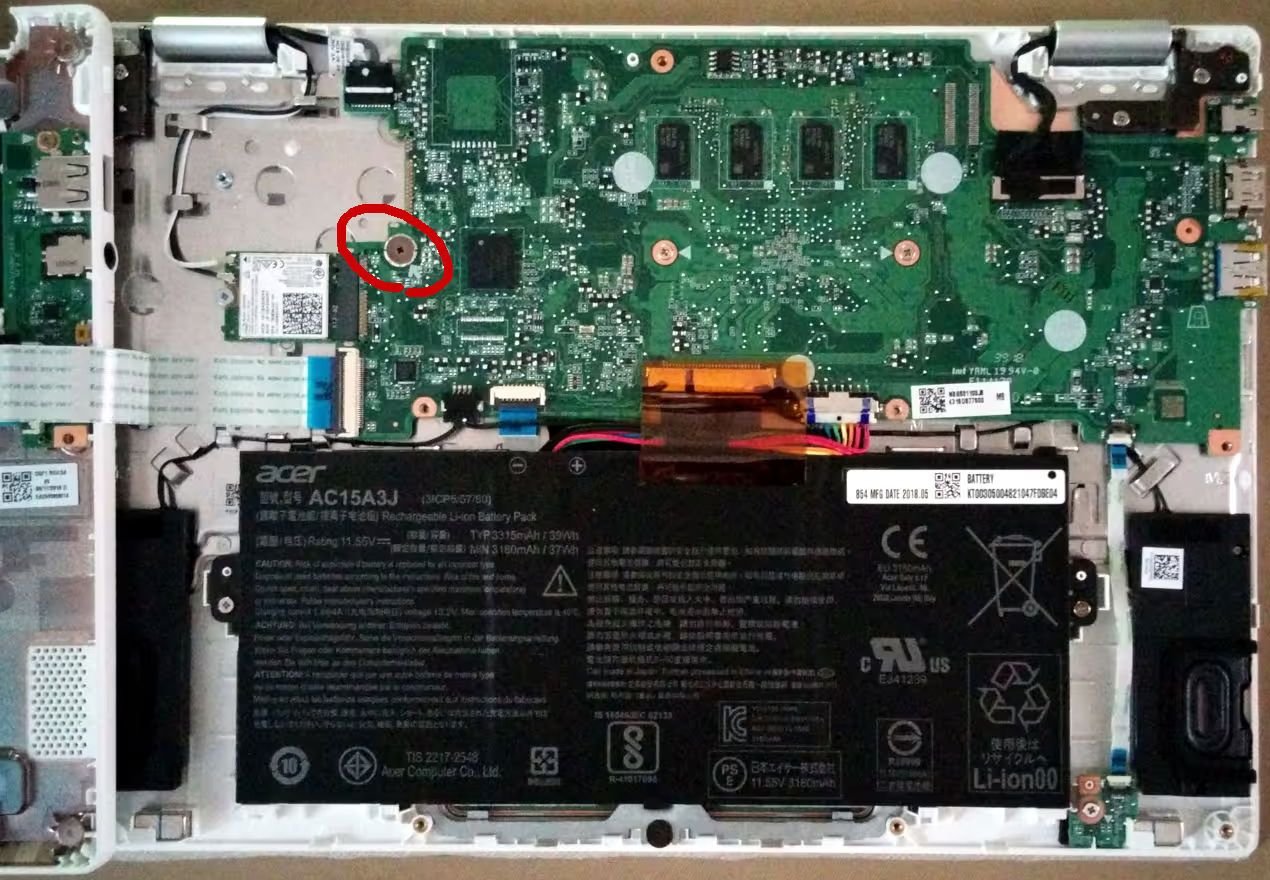
You have to be on some newer version of ChromeOS. Okay, fine. I go to update it. It says I'm on the newest version already. What is your damage? Turns out Google is constantly implementing new ways to not be evil and in this particular instance, they force obsolescence onto Chromebooks. 5 years is the end-of-life policy on the landfill magnets produced prior to 2021. Meaning, you can't update to newer software after some time. Since my chromebook was manufactured in 2016, it was very much joever. Newer, recently purchased Chromebooks apparently get longer support now. I was extremely discheesed upon learning this, and after several attempts at forcing an update to the system, I decided to go a different direction: install Tiny10 on it. I wasn't sure if it was even possible to install Windows on a Chromebook, but my husband found this custom coreboot firmware easily enough, which allows you to dual boot or replace ChromeOS entirely. The catch (sort of) is that you have to be willing to open up the laptop and take out a screw from the motherboard, called the Write Protection Screw. All that's really required of you is to follow instructions, because the guide is very detailed and it's hard to mess up if you just do as it says.
I decided it would be more useful to replace ChromeOS than to dual boot, and since my laptop was compatible with the full ROM firmware, it was a no-brainer. We took the screw out, put the laptop into developer mode (the same way you would an Android phone), logged in as chronos, and after my husband did the boring job of flashing the appropriate firmware through the terminal, it was time to follow more instructions again. This time it was my turn to follow the Windows for Chromebooks installation guide. Again, it was simple enough: firmware, install OS, install drivers. We had already flashed the firmware, so it was straight onto installing Windows. I created a Tiny10 installer (bootable USB) with Rufus, and we had a spare USB keyboard on hand like the guide suggested but the laptop's internal keyboard worked just fine. I turned on the laptop, waited to boot into the USB drive and... it worked! We successfully didn't brick the device. I installed Windows as normal, eager to see how the Chromebook would handle an actual operating system.
The Chromebook has an emaciated 4GB RAM, 32GB storage, and an Intel Celeron CPU; those are the types of specs you would see on the average computer in 2009. I was fully expecting for it to lag as I loaded into my fresh Tiny10 installation. But to my surprise, it was doing okay. It wasn't performing flawlessly but I figured it didn't matter, since I was just going to cast to it anyway. Remember what I said about the internal keyboard working? Final step was installing drivers, and as soon as I loaded into Windows, the keyboard decided to stop working. There was a keyboard driver listed on the guide I was following, so I just figured it would sort itself out once I installed it. I plugged the USB keyboard in, installed all the listed drivers and everything was functioning correctly; touchpad, touch screen, audio... everything except the internal keyboard. I spent hours pulling my hair, researching, trying to get it to work but it just wouldn't. I know I said I was going to use it as a tablet but I can't just willingly not have a functioning keyboard. What's funny is the keyboard functions flawlessly in the BIOS and during boot, so it's just solely a Windows problem. The documentation on this ChromeOS-to-Windows process was unfortunately pretty limited past the installation phase, at least for our specific device. My husband struggled for several hours also to get the keyboard working to no avail. At this point, we were convinced Windows just wasn't going to happen; across four different versions of Windows (two versions of Tiny10, Tiny11, and regular Windows 10) with an ungodly amount of reinstalling between all four, it was failure after failure.
All was lost. So I put it away and forgot about it... for all of approximately 4 days. I just couldn't accept defeat, there was no way I was going to let Microslop fuck me over right after Google. I frequently ate the back of Microsoft's shoe already, so this was an L that I wasn't willing to take. And then I remembered Linux. I installed Pop! OS on a very old laptop for my mother back in 2018, and that was my first and final contact with Linux. I remembered it being easy to install at the time, with the exact same sort of installer interface Windows and MacOS use. Researching for the most lightweight Linux operating systems, or distros, as they're called, for my 4GB RAM battlestation proved to be pretty straightforward. I tested a couple of different distros on the machine before finally settling on Lubuntu. It performed the best by far given the specs, and certainly lived up to being "a lightweight yet functional Linux distribution". Compared to Tiny10, this was lightning fast. After installation, I ended up doing the following to bring my "casting station" to fruition:
Programs
- Firefox (this is what I cast to)
- Onboard - on-screen keyboard since I'll be using the touch screen
- evdev-right-click-emulation - implements long press to right click gesture on Linux touchscreen devices
- Unclutter - hide the cursor after a period of inactivity
Autostart (Commands)
In order: Firefox launches in kiosk mode, touchscreen is inverted (since the screen is manually flipped upside down in screen settings), launch Onboard, launch evdev, automatically connect to bluetooth speakers, launch Unclutter (hides cursor every 1 second)
- Firefox:
firefox --kiosk - Invert Touchscreen:
sh -c \ "sleep 3 && xinput set-prop \'Elan Touchscreen\'\'Coordinate Transformation Matrix\' -1 0 1 0 -1 1 0 0 1 - Onboard:
onboard - Right Click:
sudo /usr/local/bin/evdev-rce - Speaker:
bluetoothctl connect [<MAC ADDRESS>] - Unclutter:
unclutter -idle 1 -root
Cast through Firefox
In order to cast to the Chromebook like you normally would to a TV, you need to 1. trick other devices into thinking its a Chromecast-compatible device, and 2. pair it with other devices.
- Trick other devices
In Firefox, go to about:config → general.useragent.override → Mozilla/5.0 (Fuchsia) AppleWebKit/537.36 (KHTML, like Gecko) Chrome/110.0.0.0 Safari/537.36 CrKey/1.56.500000
- Pair it
Open YouTube in your browser and pair it with a TV code like you normally would a TV. Go through all the normal steps, when you finish you will see your Chromebook appear as a valid device when you go to cast with your phone's YouTube app.
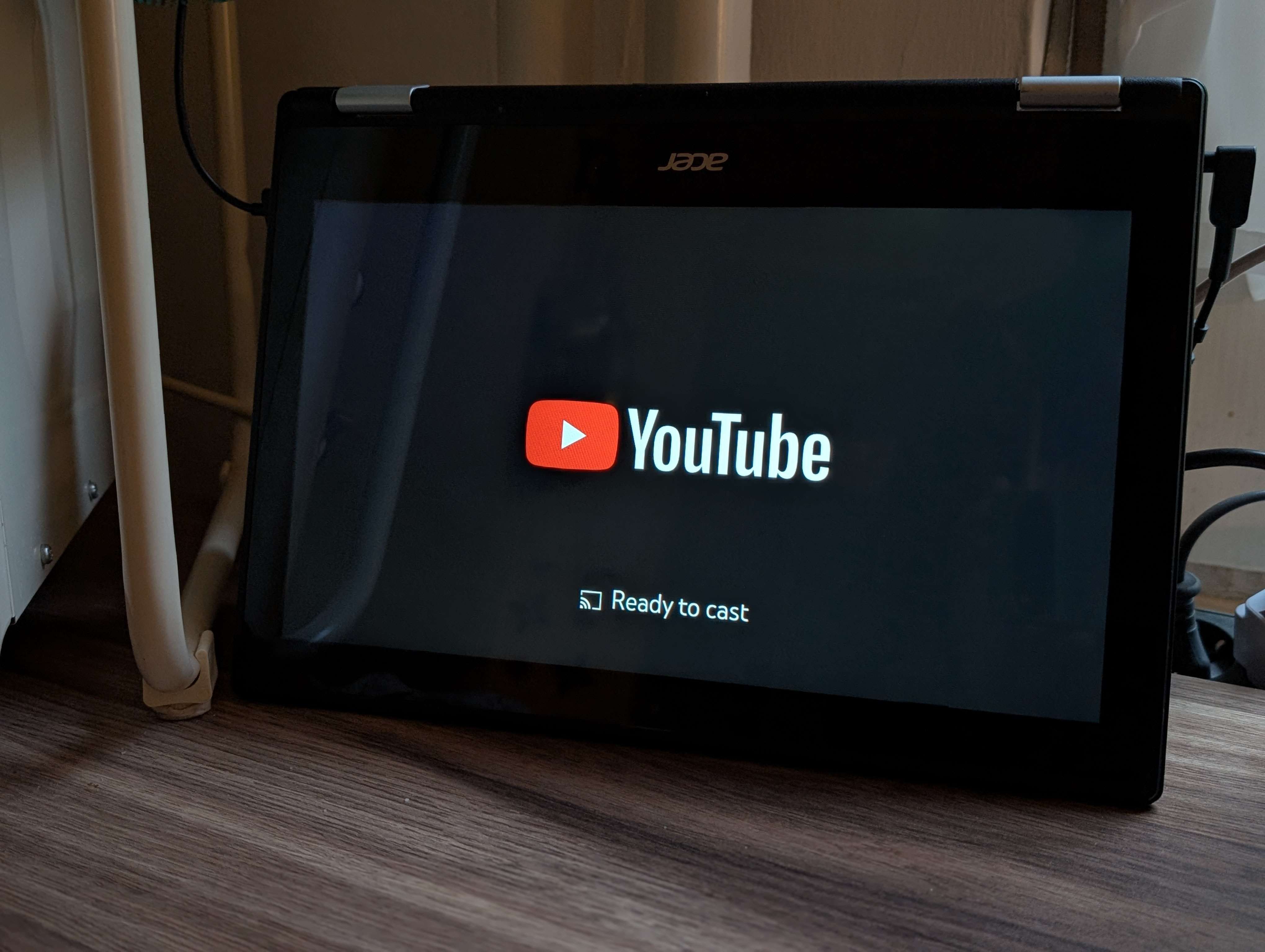
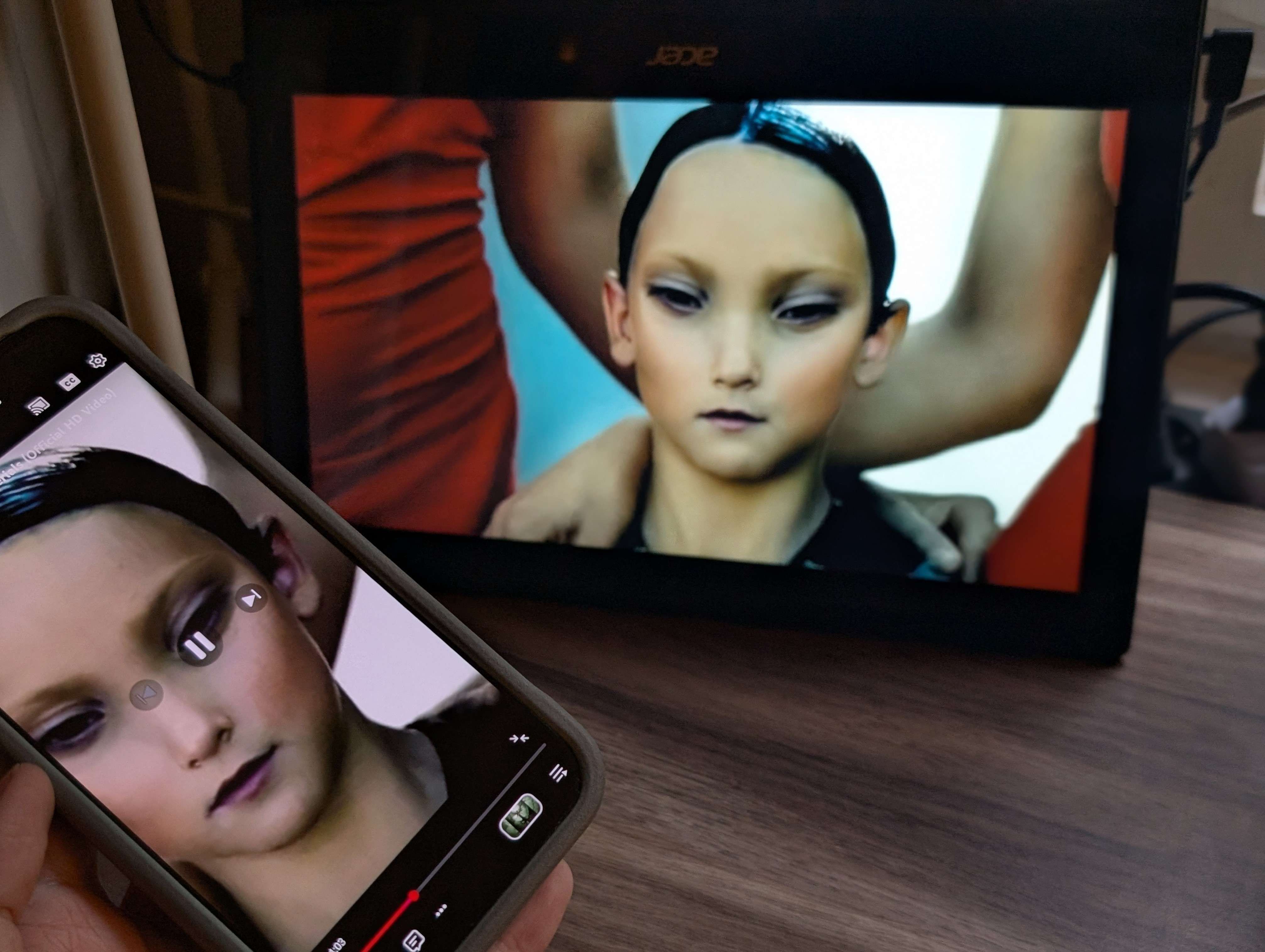
The last thing I wanted to do, that I still can't figure out, is how to get a Windows 98 screensaver to work with WINE. Whenever I try to launch it with wine Underwater.scr /s through XScreenSaver it just turns into a black screen and closes every other program that is currently open. Definitely not compatible behavior with a casting station. Launching it manually or previewing it works though. Bizarre. If you have any solutions, let me know.
Very soon after this little project, I decided to fully move to Linux. As in, wipe my real main computer's hard drive, getting rid of Windows and installing Linux in its place. I made a whole page on Linux, where I talk about what happened after this, my current set up, why you should switch, etc. The journey continues!
- ← Previous
Book Club 2026 | January: The Hobbit - Next →
Switching from VS Code to Vim